How to Use the Flowtime Timer: A Step-by-Step Tutorial
Ready to start your first Flowtime session? This tutorial shows you how to use Flowtime as an actual timer system: choosing a task, setting useful targets, working without forced interruptions, taking...
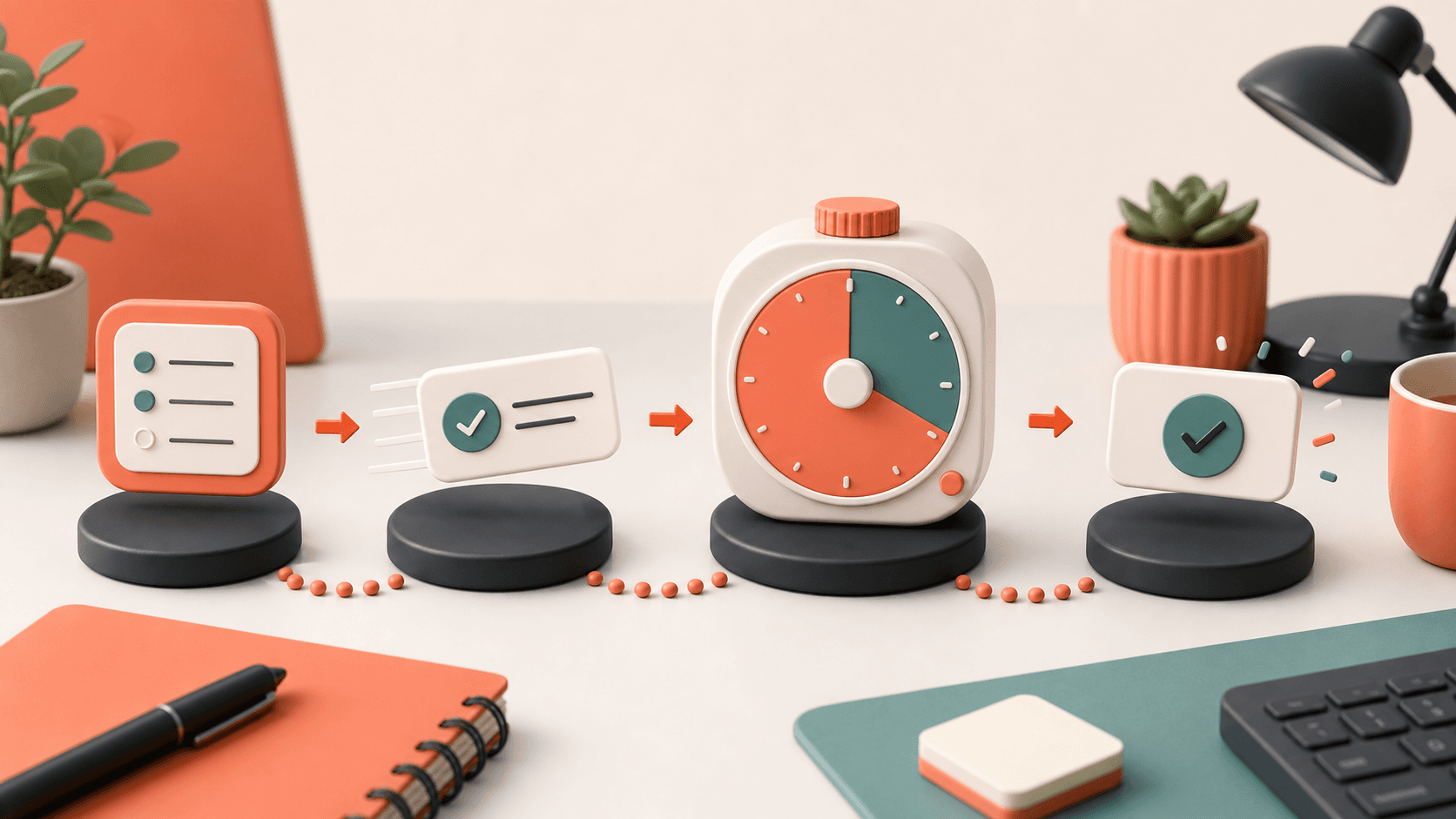
Ready to start your first Flowtime session? This tutorial shows you how to use Flowtime as an actual timer system: choosing a task, setting useful targets, working without forced interruptions, taking the right break, and reviewing what happened afterward.
Flowtime is flexible, but it is not vague. The app gives you a few controls that matter: a focus target, a break target, optional max timer limits, a focus time window, task tracking, and analytics. Once those are set, the timer can stay out of your way.
Step 1: Open the App
Navigate to flowtime.work. You can start a session immediately. If you want your tasks, sessions, settings, and analytics to follow you across devices, create a free account before you build a longer routine around it.
Step 2: Choose Your Task
Before you start the timer, select or create the task you will work on. This matters because Flowtime tracks focus, break, and idle time against the selected task. After a few sessions, you can see which tasks absorb deep work and which ones create more switching or idle time.
Good task names are specific enough to review later:
- "Write blog intro"
- "Debug login API"
- "Design landing page hero"
- "Review chapter notes"
Avoid vague task names like "work" or "stuff." They make your analytics less useful.
Step 3: Set Your Focus Target
Open the timer settings and set a focus target. This is a soft goal, not a forced stop.
For your first few sessions, use one of these:
- 25 minutes if you are new to focus timers
- 45 minutes if you already know you can settle into deep work
- 60 minutes for writing, coding, studying, or other longer tasks
When you reach the target, Flowtime can notify you. The important difference from a rigid timer is that the target does not have to end the session. If you are still focused, keep going.
Step 4: Set Your Break Target
Set a break target that matches the kind of work you are doing. A simple starting point is 5 minutes of break for about every 25 minutes of focus.
Examples:
- 25 minutes of focus -> 5 minute break
- 50 minutes of focus -> 10 minute break
- 75 minutes of focus -> 15 minute break
Use the target as a guide. If you are recovering from intense work, take the full break. If the session was light, a shorter break may be enough.
Step 5: Decide Whether to Use Auto-Switch
Flowtime includes an Auto-switch to break setting. Use it based on how much structure you want.
Turn it on when:
- You are new to Flowtime and want clear transitions
- You tend to work too long without stopping
- You are using max timer limits to prevent burnout
Turn it off when:
- You are doing creative or technical work and do not want any automatic mode change
- You prefer to stop focus manually when your attention drops
- You want the timer to act more like a tracker than a coach
This setting is not about right or wrong. It is about how much guidance you want the app to provide.
Step 6: Add Max Timer Limits
Targets are soft. Max timer limits are guardrails.
Use Max focus time to prevent sessions from turning into unplanned marathons. A good first setting is 90 minutes. If you regularly finish drained or irritated, lower it. If you are doing long-form creative work and feel good afterward, you can raise it.
Use Max break time to keep breaks from stretching indefinitely. A good first setting is 20 to 30 minutes for normal workdays.
Step 7: Start the Timer
Hit the big play button and start working. The timer runs in the background. Don't watch it — just work. Flowtime is designed to be invisible until you need it.
If you selected a task first, the time will be attached to that task. If you did not, the session can still help you build a focus habit, but you will lose some task-level detail later.
Step 8: Work Until You Need a Break
Keep working until your focus clearly drops, the task reaches a natural stopping point, or your max focus limit tells you it is time to stop. Maybe that happens after 20 minutes. Maybe it happens after 65. The point is to let the session fit the work instead of forcing the work into a fixed interval.
Good stopping points include:
- You finished the next meaningful part of the task
- You are rereading the same line without progress
- You feel physically restless or mentally foggy
- You reached your max focus limit
When you are ready, stop the focus timer and switch to break mode.
Step 9: Take a Real Break
Use the break as recovery, not disguised work. Step away from the task if possible. Flowtime also supports guided break exercises, stretches, and short workouts if you want a more active reset.
Avoid checking feeds during every break. It often turns a recovery period into a new attention problem.
Step 10: Review Your Session
After your session, Flowtime shows you a summary:
- Total focus time
- Break time
- Idle time, when available
- Whether you hit your target
- Session completion rate
The first session is useful, but the pattern over time is more important. One short session does not mean anything is wrong. Three short sessions in a row may tell you the task is unclear, the environment is distracting, or the target is too aggressive.
Step 11: Check Your Analytics
Over time, your analytics dashboard builds a picture of your productivity:
- Daily, weekly, and monthly focus charts
- Average session length
- Completion rates
- Current streak
- Task-by-task breakdowns
Use this data to adjust the timer. If you always stop at 35 minutes, set a 35 or 40 minute focus target. If your breaks regularly run long, lower the max break time. If you focus better in the morning, set your Focus Time Window around that pattern.
Recommended First-Day Setup
If you are unsure where to start, use this setup:
- Focus target: 45 minutes
- Break target: 10 minutes
- Max focus time: 90 minutes
- Max break time: 30 minutes
- Auto-switch to break: On for the first week, then adjust
- Focus Time Window: Your normal work or study hours
- Working Days: The days you actually want tracked
This gives you enough structure to stay consistent without forcing every session into the same shape.
That is the practical way to use Flowtime: choose a task, set a soft focus target, add sensible limits, work until the session reaches a natural stopping point, then use the data to tune the next session.